Build Your Own Branded Download Page Using AI
Posted on 週日 28 六月 2026 in Blog
You can use AI to rapidly create a custom branded download page by following the steps below. AI can analyze your brand style and generate files ready for import, so once you upload them, the system can instantly produce your branded page.
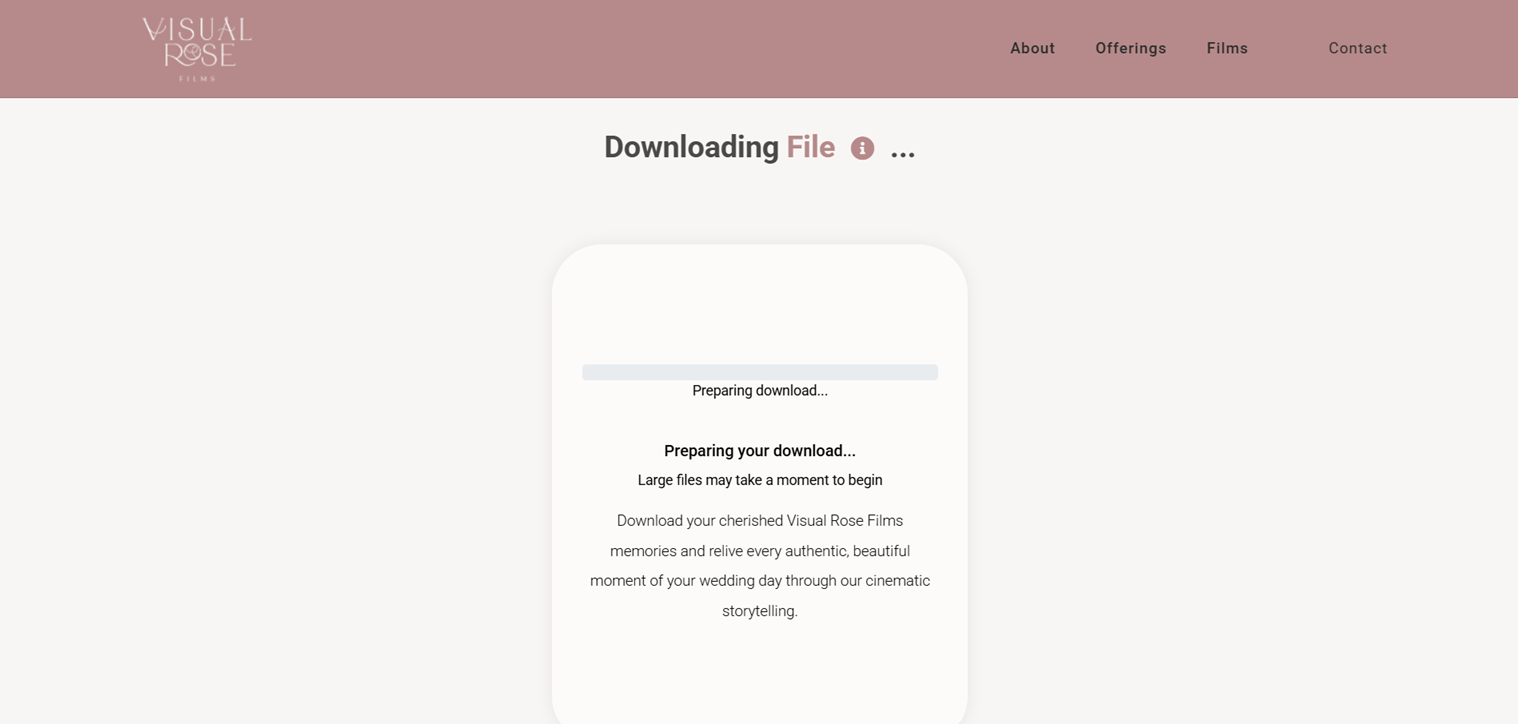
Step 1: Generate Brand Configuration
Enter your brand name after Brand name: and your official website after My website: in the prompt below. Then paste the completed prompt into your preferred AI tool (we recommend ChatGPT or Claude) and submit it.
You are a brand website design assistant. Please generate a configuration JSON file for a FastFileLink brand download page based on the company website I provide.
My website: https://www.visualrose.com/
Brand name: Visual Rose Films
Design requirements:
1. Please refer to the website’s brand style, color scheme, tone, and navigation structure.
2. Directly generate the file for download.
3. All colors must use HEX format, e.g. "#ffffff".
4. navItems must contain 1 to 10 items. Please select the most suitable navigation links for a download page.
5. downloadNote should be a brand description text displayed above the download button.
6. footerNote may use simple HTML, but must NOT include script, iframe, form, onclick, onerror, or any JavaScript.
7. logoUrl should be extracted from the website logo. If no image URL can be found, set it to null.
8. If no suitable background image is available, set backgroundImageUrl to null.
9. footerAlign can only be "left", "center", or "right".
10. Output only the JSON object. Do not add any explanatory text. Directly generate the file for download.
Please use the following schema:
{
"logoUrl": "",
"logoLink": "",
"backgroundImageUrl": "",
"backgroundColor": "",
"headerColor": "",
"headerTextColor": "",
"footerColor": "",
"footerTextColor": "",
"normalTextColor": "",
"enhanceTextColor": "",
"footerNote": "",
"downloadNote": "",
"downloadNoteTextColor": "",
"downloadStatusColor": "",
"footerAlign": "",
"title": "",
"whiteLabelName": "",
"navItems": [
{
"text": "",
"link": ""
},
{
"text": "",
"link": ""
}
]
}
For the meaning of each field, please refer to: https://fastfilelink.com/static/images/BrandingFields.png
Please thoroughly browse my official website, use a web search tool to obtain HTML for analysis, and carefully study the referenced image explaining the fields to generate an accurate brand style.
Remember to directly generate the file for download. If file generation is not possible, only then output a code block.
Reminder: You can enable the AI tool’s advanced thinking features — for example, enable Thinking mode in ChatGPT, or set Effort to High and enable thinking mode in Claude.
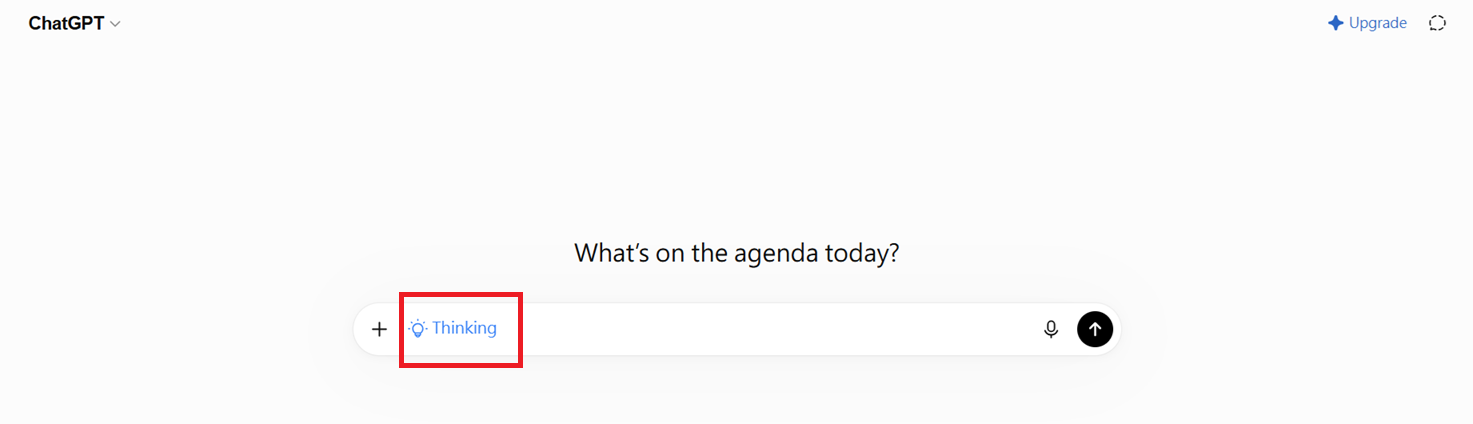
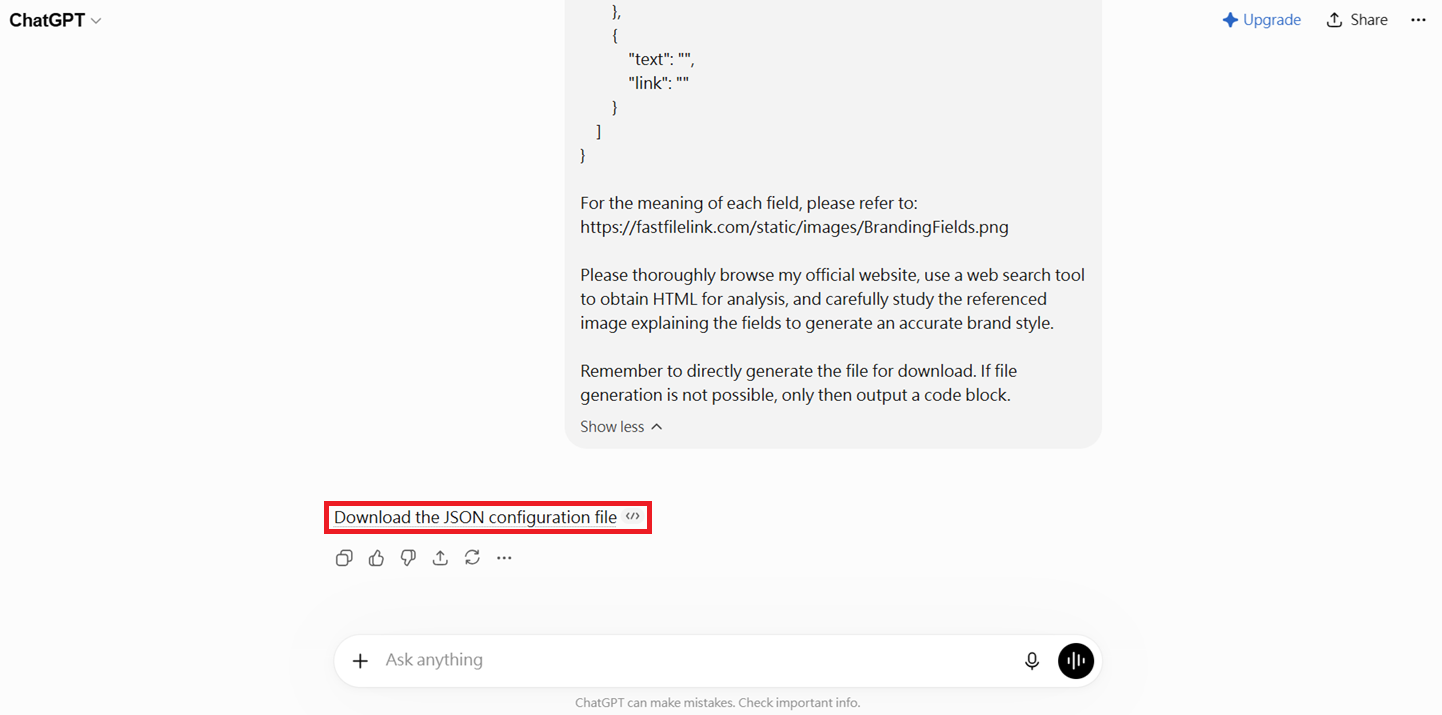
After you submit, an output file will be generated. Make sure to save it.
Step 2: Import Brand
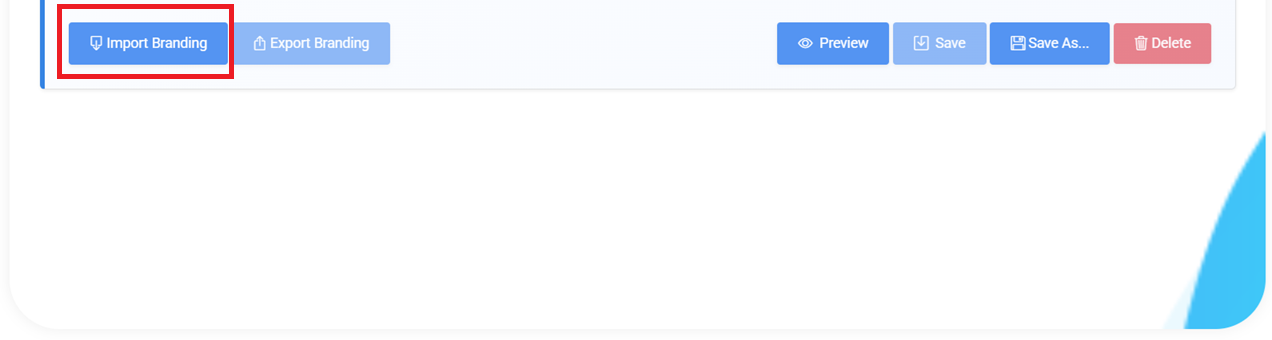
Click "Import Branding" and upload the file you just saved.
Step 3: Preview and Adjust
Use the preview feature to review the generated result. If you need adjustments, refer to Step-by-Step Tutorial: Creating a Branding Page for further customization guidance.