Connect FastFileLink MCP from Claude / ChatGPT: Complete Setup Tutorial
Posted on 週日 31 五月 2026 in Blog
Plug the MCP server built into the FastFileLink Android app straight into Claude or ChatGPT, and the AI can browse your photo library, curate selections, and produce share links — all without leaving the chat window.
Quick Navigation
Prerequisites
Before you start:
- FastFileLink for Android, v1.0.18 or newer — install or update from Google Play.
- AI Photo Album Assistant enabled — turn the toggle on inside the app, pick the photos you authorize the AI to see, and wait for the MCP URL to appear. Keep your phone within reach: pairing requires a one-tap "Allow" on the phone before the URL is actually usable.
Heads up: Standard / Plus members get a fixed alias-backed URL that survives reconnects, while free users get a fresh URL on every reconnection and must re-paste it.
1. Connect from Claude
The walkthrough below covers the Claude desktop / web client. Custom connectors are a Pro-tier feature, so you'll need a Claude account on the Pro plan or higher.
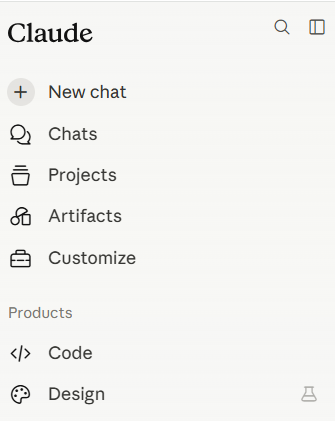
Step 1: Open the left sidebar and click "Customize"
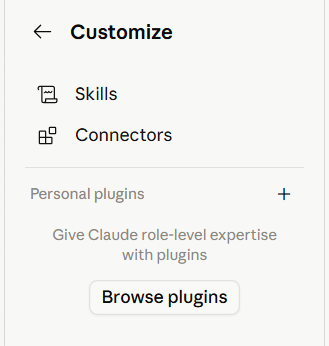
Step 2: Inside Customize, click "Connectors"
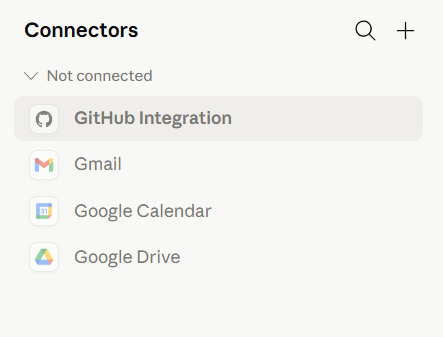
Step 3: On the Connectors page, hit the "+" in the top-right corner
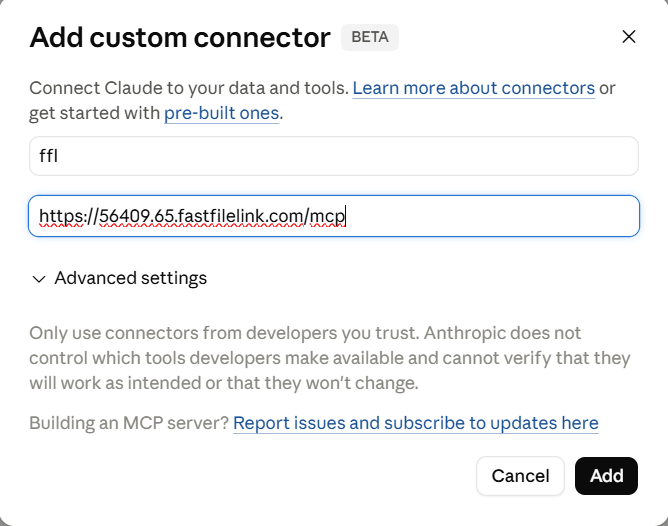
Step 4: The "Add custom connector" dialog appears
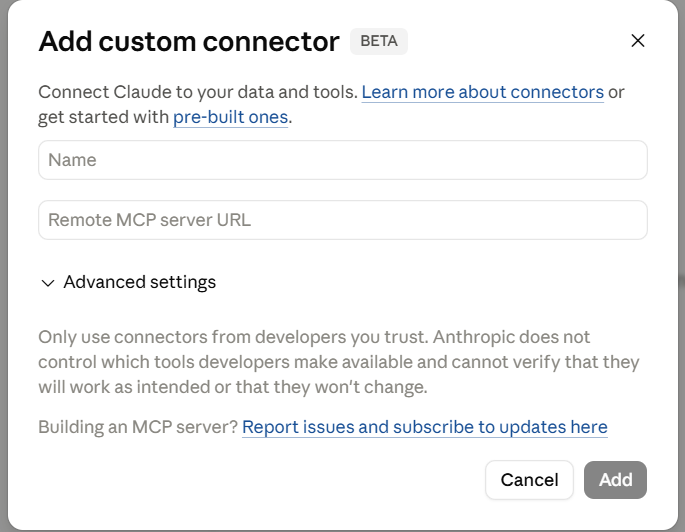
Step 5: Fill in the name and MCP URL
Type any memorable name into Name (we use ffl in the screenshot). Paste the MCP URL shown in the phone app into Remote MCP server URL, then hit "Add" in the bottom-right.
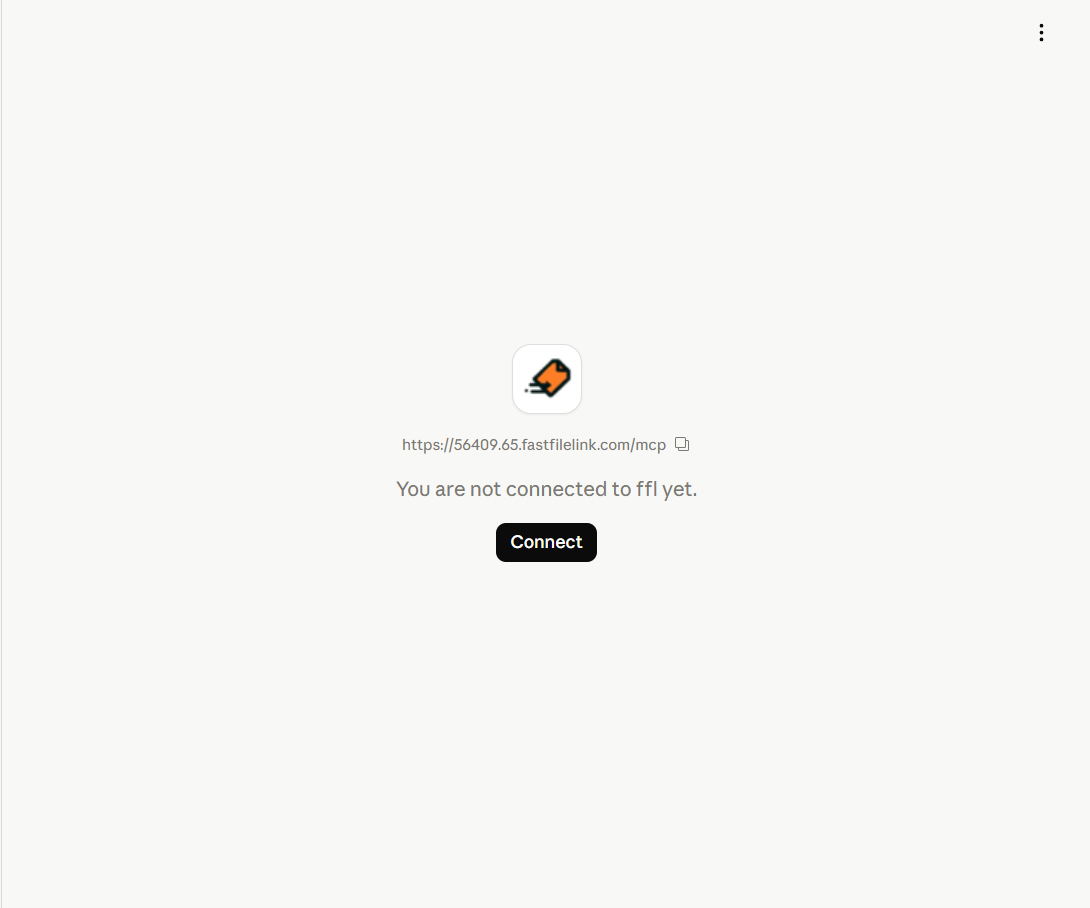
Step 6: The connector appears in the list — open it and press "Connect"
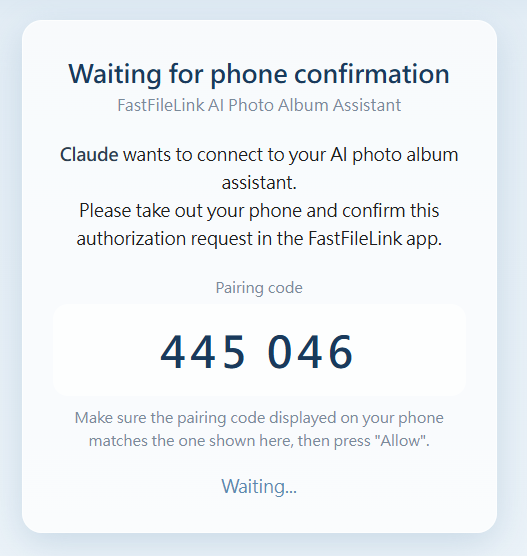
Step 7: Match the pairing code, then tap "Allow" on the phone
After pressing Connect you see a "Waiting for phone confirmation" page with a six-digit pairing code. Back to the phone — the FastFileLink app pops up an approval dialog simultaneously. Make sure the pairing code on the phone matches the one in the browser, then tap "Allow" on the phone.
This is the linchpin of the security model: even if the MCP URL leaks, nobody can connect to your library without a physical tap on the phone.
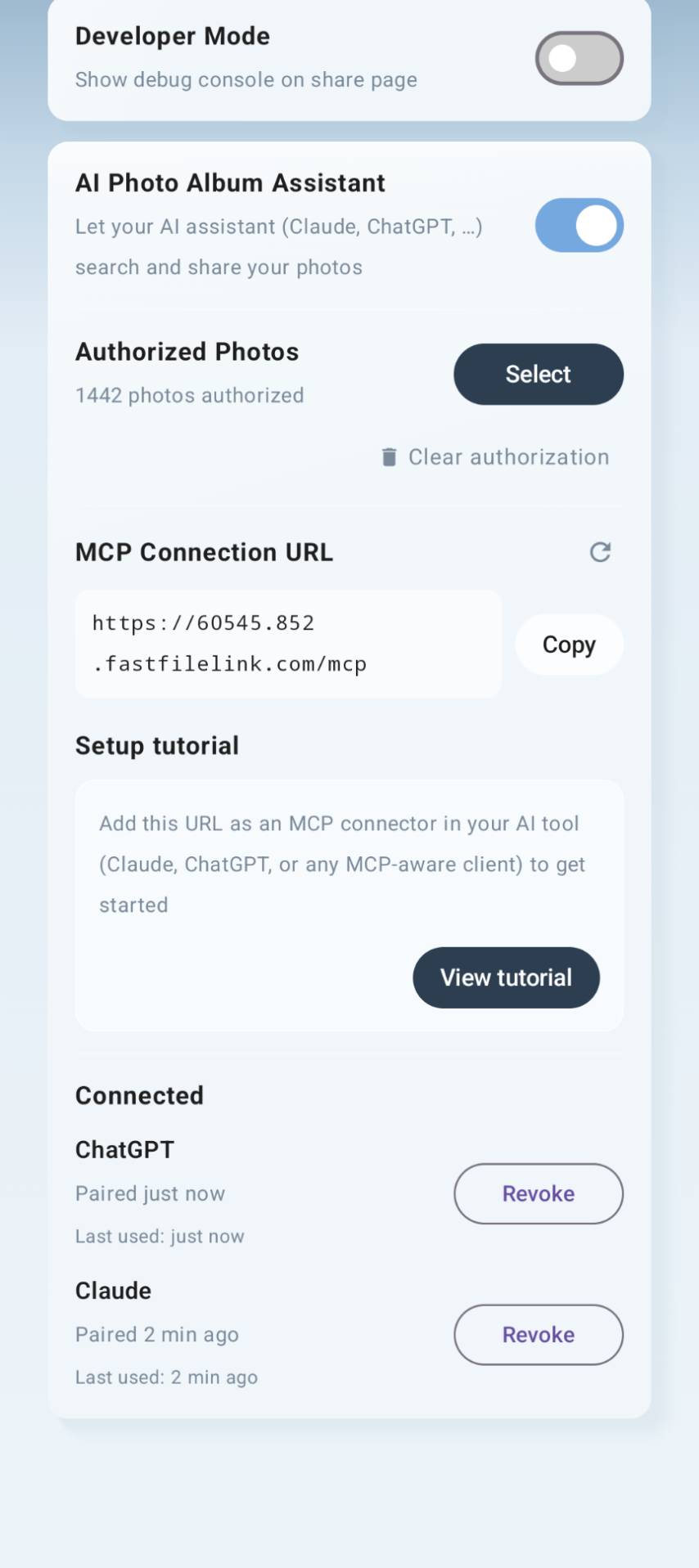
Step 8: Done — the app shows the new connection
Once you tap Allow on the phone, the browser switches to "Connected to ffl" and the pairing goes live. Over on the phone, the FastFileLink app's Connected section now lists every paired client (Claude, ChatGPT, …), each with its own Revoke button — that's where you can review or cut off access at any time.
That wraps up the Claude side. Head back to the chat window and try something like "Pull together the photos from last weekend's trip and make me a share link" — Claude will reach into your library through MCP and do the rest.
2. Connect from ChatGPT
ChatGPT custom MCP connectors work on any plan, including the free tier.
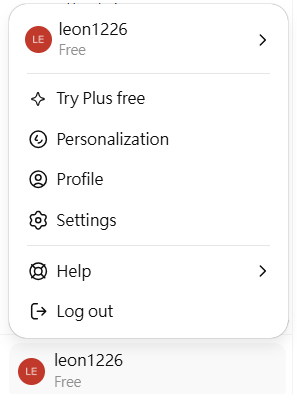
Step 1: Click the avatar in the top-right corner and choose "Settings"
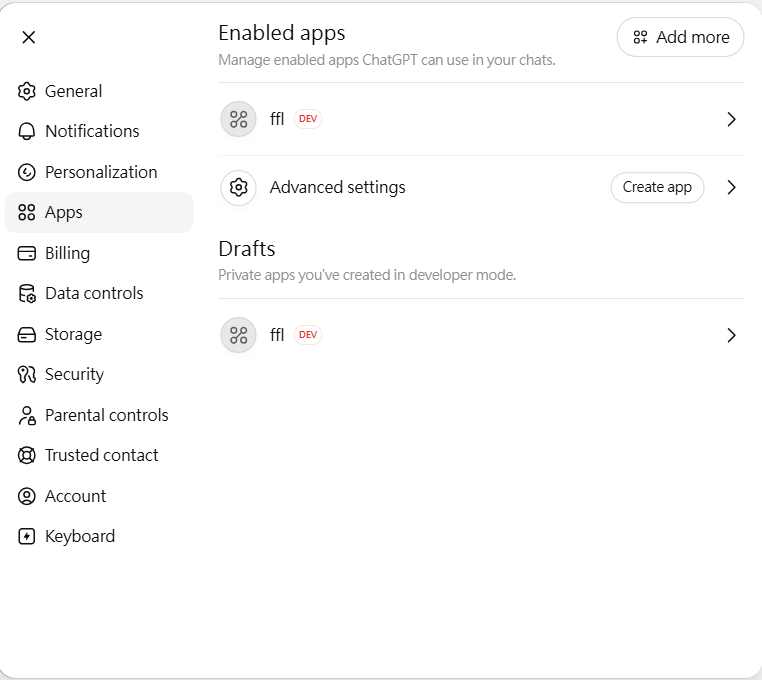
Step 2: In Settings, open the "Apps" tab and click "Create app" next to Advanced settings
If you already have other custom apps they'll appear under "Enabled apps" — ignore those and look for the "Create app" button on the right.
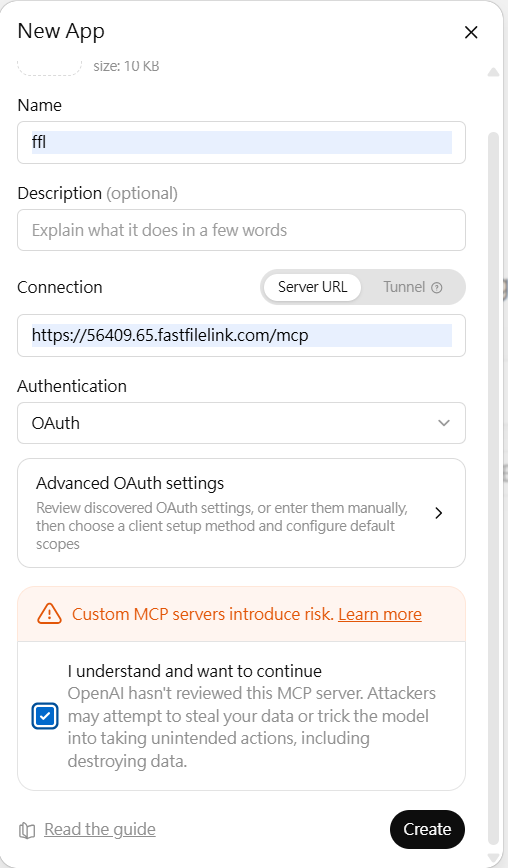
Step 3: Fill in name + MCP URL, pick "OAuth", check the risk acknowledgement, hit "Create"
- Name: any recognizable label (we use
ffl) - Connection: keep "Server URL"; paste the MCP URL shown in the phone app
- Authentication: select
OAuth - You must tick "I understand and want to continue" — without it, "Create" stays disabled
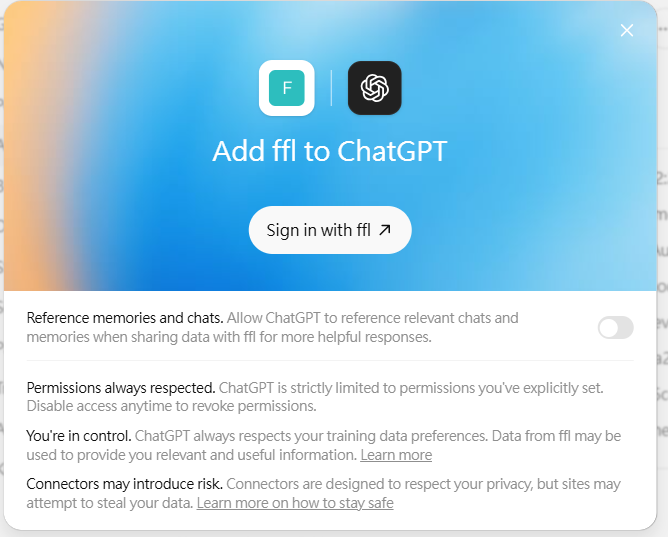
Step 4: An "Add ffl to ChatGPT" modal pops up — click "Sign in with ffl"
Clicking Sign in with ffl opens a new browser tab where FastFileLink confirms the connection.
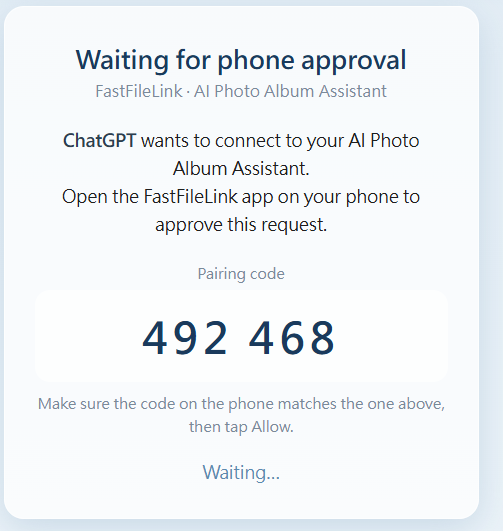
Step 5: Match the pairing code, then tap "Allow" on the phone
In that tab, a "Waiting for phone confirmation" page appears with a six-digit pairing code. Back to the phone — the FastFileLink app pops up an approval dialog at the same time. Make sure the pairing code on the phone matches the one in the browser, then tap "Allow" on the phone.
Once you approve, the tab takes you straight back to ChatGPT and the connection is done.
Step 6: Done — the app shows the new connection
Back on the phone, the FastFileLink app's Connected section now lists ChatGPT (alongside any other clients), each with its own Revoke button — that's where you can review or cut off access at any time.
Use Cases
With the connection live, what can you actually do with it? Here's a real-world example: your photo library is a jumble of graduation, restaurant, and zoo shots from the past few days, and a friend asks for just the zoo photos. In one sentence, the AI picks the zoo ones out of the pile, packages them, and hands you a share link.
See it in action → One Sentence, One Link: Ask AI to Find Your Zoo Photos and Share Them
FAQ
The URL stops working after a while?
Free users get a tunnel on a random port; reconnects produce a new URL that you have to paste into your AI client again. Standard / Plus members get a fixed alias-backed URL that survives reconnects.
No approval dialog on the phone?
Make sure the app is still in the foreground and hasn't been killed by battery-saver policies. Check the notification shade for the "AI Photo Album Assistant running" foreground notification — if it's gone, toggle the switch off and on inside the app.
Pairing codes don't match?
Tap deny. That means someone else is trying to connect with your MCP URL. Check if the URL leaked, and turn the assistant off and back on to mint a fresh one if needed.
Tips
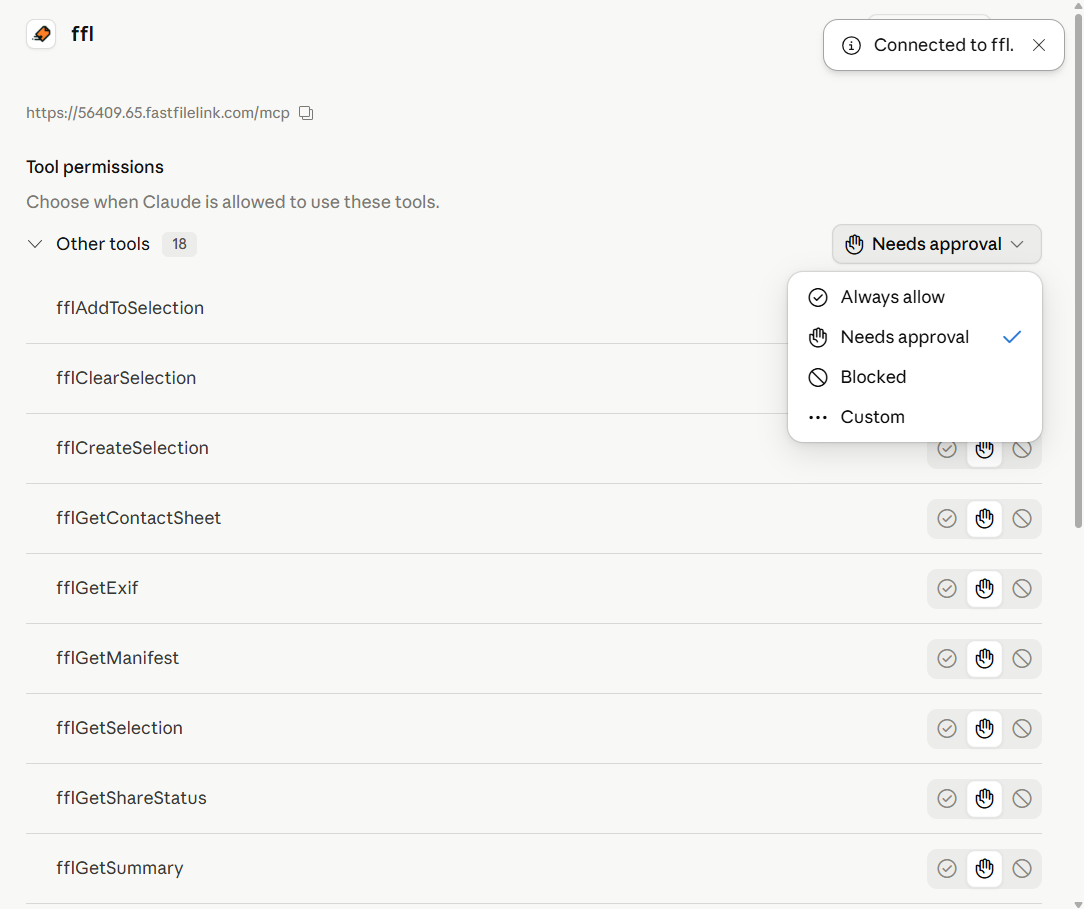
Fine-tune tool permissions. Back in Claude, the connector lists every available tool. The default is "Needs approval" — Claude asks each time it wants to invoke a tool. If you trust this connector, flip frequently-used tools to "Always allow" to cut down on prompts.
Privacy Notice
When you use the AI Photo Album Assistant, the AI reads thumbnails of your photos to decide which ones match your request — not the original high-resolution files. If you have any concerns about privacy, we recommend leaving this feature off.