How to Purchase Software and Complete Checkout
Posted on 週日 05 七月 2026 in Blog
This article is a tutorial on how to purchase software and complete checkout.

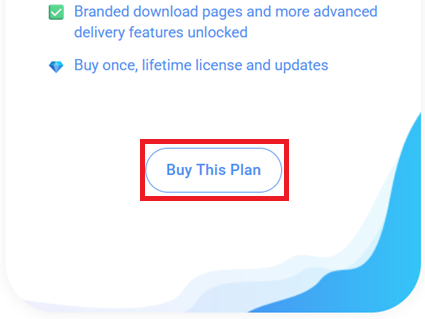
Step 1: Click the 'Buy This Plan' button
You can find the Buy button on our homepage. Select the version you want and click 'Buy This Plan'.
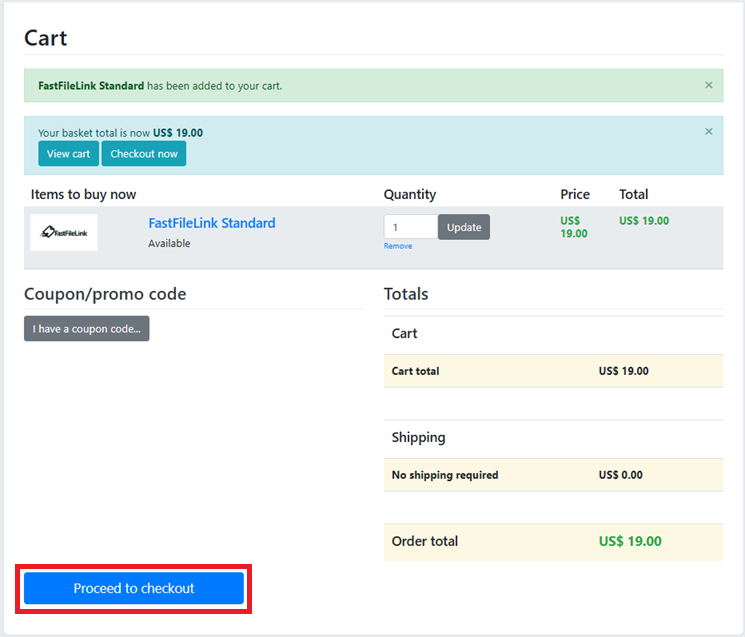
After clicking, you will see your shopping cart. Once you confirm the items are correct, click 'Proceed to checkout'.
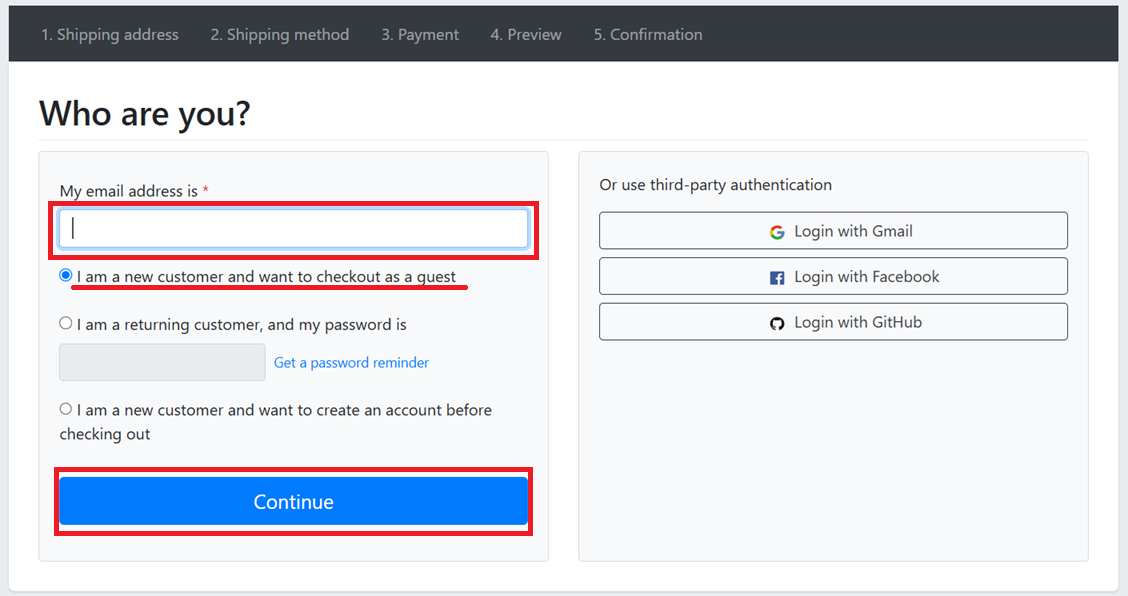
Step 2: Enter your email
Enter your email in the blank field and click 'Continue' button. Alternatively, you can use third‑party login to verify your identity. Reminder: This will be the account bound to your purchase. If you change devices and need to re-download the software, or download it again from the store (Microsoft Store / Apple Store / Google Play Store), you must use this email to activate your account. Likewise, purchasing credits or adjusting account settings will also be done through this email.
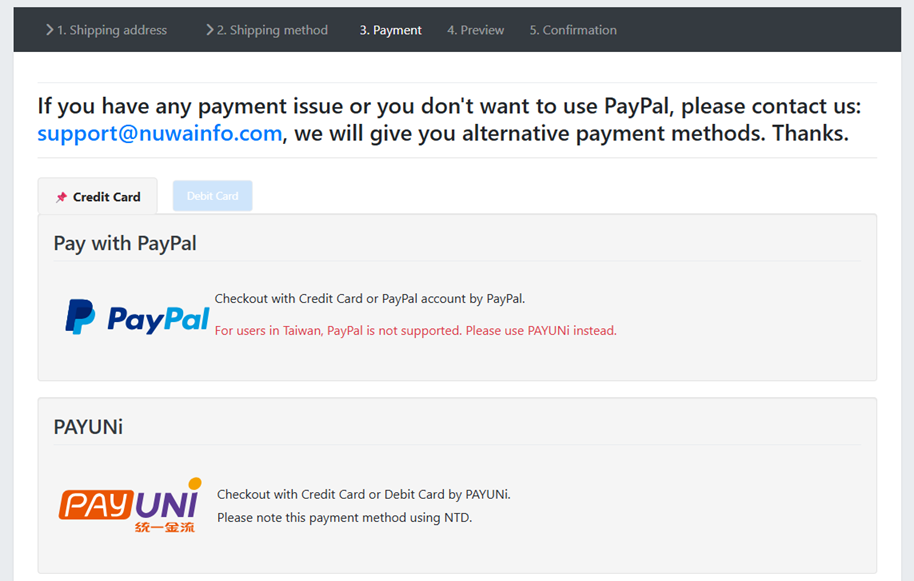
Step 3: Choose a payment method
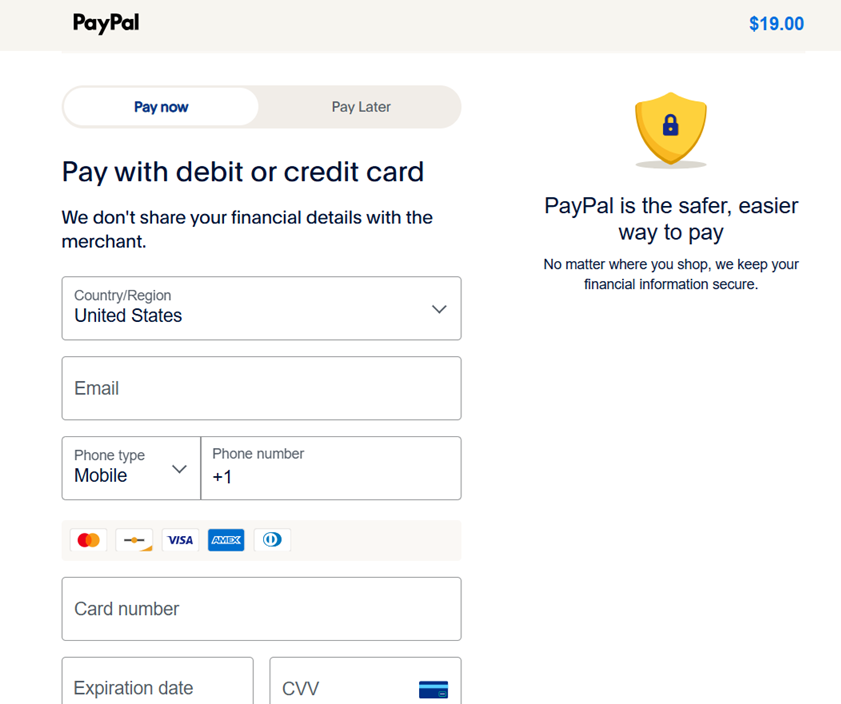
We provide two payment options: PayPal and PayUNi. You can select the method that suits you (Note: Users in Taiwan can only use PayUNi for checkout). After choosing, you will enter the payment process. Please follow the steps — below we demonstrate using PayPal.
Enter your credit card number, expiration date, and security code, then submit.
Step 4: Complete the process
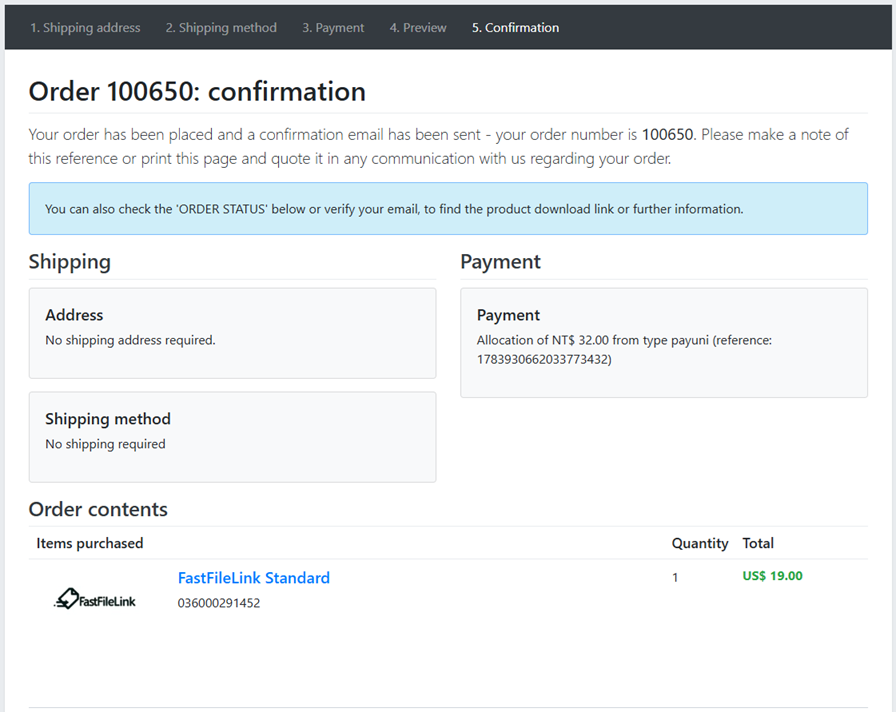
After checkout, you will see the page below. You can then access the software download link from the email account you just bound (if you don’t receive it, please check your spam folder). Alternatively, you can download the software from the store (Microsoft Store / Apple Store / Google Play Store) and activate your account by your email.
Your payment is processed through a secure, encrypted payment system to help protect your personal and payment information. We also offer a 30-day money-back guarantee if you're not satisfied with your purchase. Please note that credits or points that have already been issued or used are non-refundable. For more information about how we collect, use, and protect your personal data, please refer to our Privacy Policy.